Configuring the navigation settings
You can configure the navigation operations, screen display, voice guidance, and other settings.
- Available settings may differ depending on the vehicle model and specifications.
- For details on how to use navigation functions, refer to the following: ▶ see "Map."
- On the Home screen, press Setup ▶ Navigation.
The navigation settings screen appears.
- Configure the settings as required.
- Press
 on the screen or press the button on the control panel, enter a search term, and then select the item to run.
Display
Sets the information to be displayed on the Map.
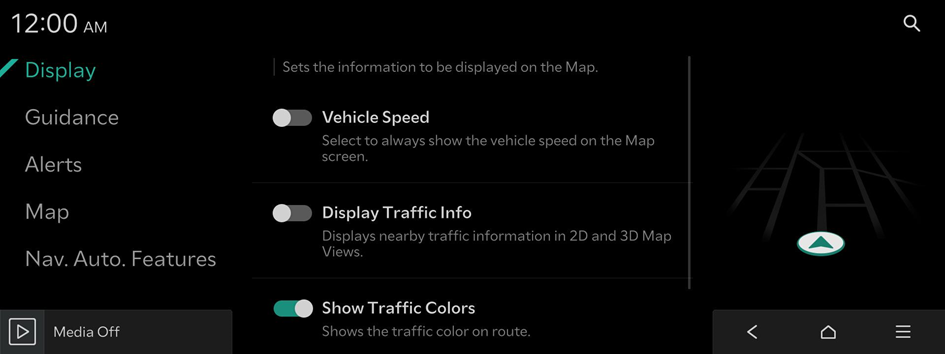
Vehicle Speed
Select to always show the vehicle speed on the Map screen.
Display Traffic Info
Displays nearby traffic information in 2D and 3D Map Views.
Show Traffic Colors
Shows the traffic color on route.
Show POI Icons on Map
Sets the display of POI Icons. This setting is not supported in Clean mode.
Guidance
Sets the Navigation Guidance preferences.

Route Options
Drag and drop the route options to change their priority in calculating new routes. After reordering the list, new routes will be set based on this prioritization.
Set Type of Guide Distance
Set how to display the distance to the destination during route guidance.
- • Interval Distance: Displays the distance to the next waypoint and the distance between the last waypoint and the destination.
- • Cumulative Distance: Displays the cumulative distance from the current point to the destination.
Select Guidance View for Turns/Maneuvers
Sets the display of guidance location.
- • Detailed Guidance View: Provides an enlarged and detailed view for turns and maneuvers.
Border Crossing Information
Set how to display the distance to the destination during route guidance.
- • Border Crossing Information: Enable/disable country border crossing information.
- • Country Information: Display of country information based on the current location.
Show Alternate Route Information
Provides additional route(s) on the Map screen. Toll-free route options are excluded.
Show Route Overview While Stopped
Shows the full route overview when stopped.
End Navigation Voice Guidance Near Destination
Voice Guidance will end near the destination registered in Favorites.
Alerts
Sets the Safety Alert camera options.
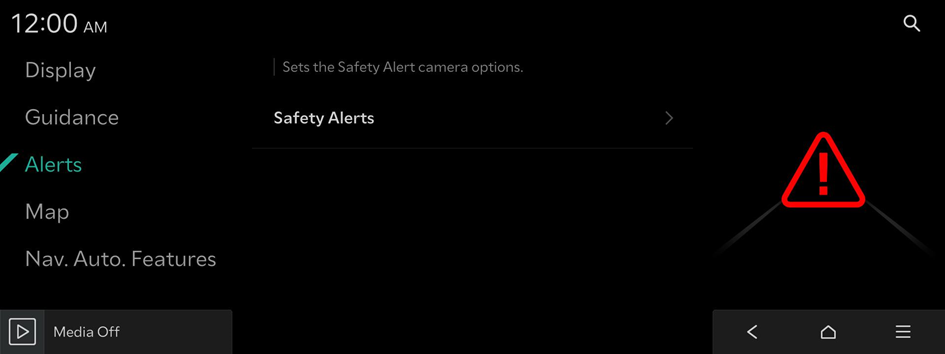
Safety Alerts
Sets the guidance for Safety Alerts.
- • Daytime: Sets the Safety Alerts for daytime.
- • Night: Sets the Safety Alerts for night time.
Map
Sets the properties of the Map display.
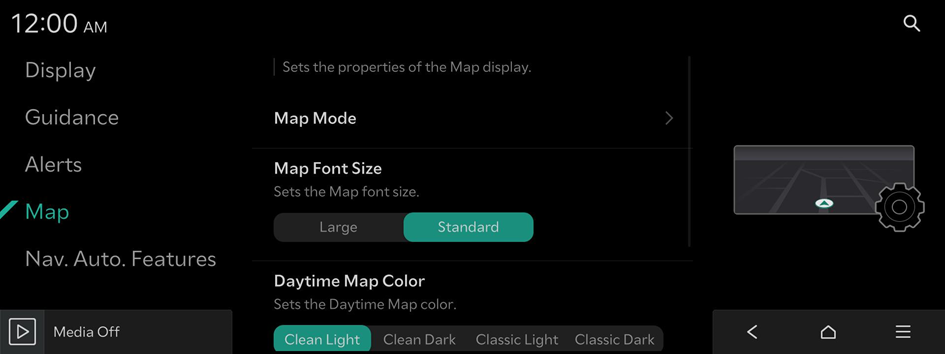
Map Mode
Sets the Map Mode.
- • Map View: Sets the Map view.
- North Up 2D: Displays the map with the north fixed at the top.
- Heading Up 2D: Rotates the map depending on the driving direction.
- Heading Up 3D: Rotates the map depending on the driving direction for 3D view.
- • 3D Buildings: Displays buildings in the Heading Up 3D Map View.
- • Auto-scale: Adjusts the Map scale automatically.
Map Font Size
Sets the Map font size.
Daytime Map Color
Sets the Daytime Map color.
Set Map Auto-scale
Sets the range of Auto-scale which is automatically adjusted according to the vehicle speed.
Nav. Auto. Features
Sets the convenience features related to Navigation.
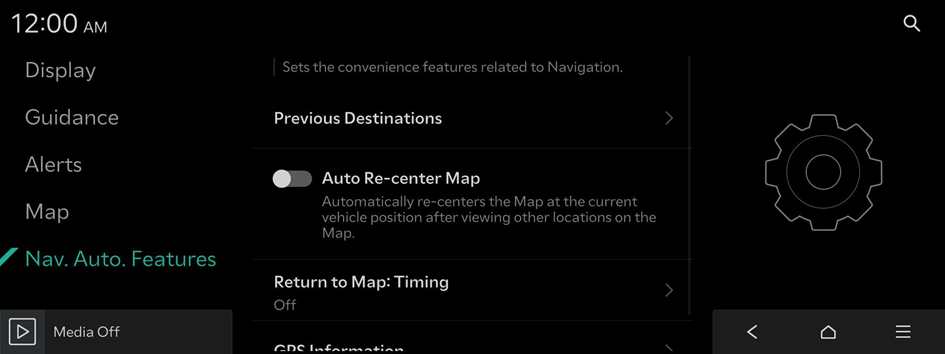
Previous Destinations
Sets the Previous Destinations preferences.
- • Save Previous Destinations: The set destination is saved in the Previous Destinations.
- • Save Destinations Based on Automatic Recommendations: Recommends frequently visited points to be saved as Home or Work.
- • Display Previous Destinations when entering the Map screen: Displays Previous Destinations when first entering the Map screen.
Auto Re-center Map
Automatically re-centers the Map at the current vehicle position after viewing other locations on the Мар.
Return to Map: Timing
When guiding a route, the screen automatically returns to the Map screen after a certain period of time from broadcast or media screen. It does not work on the phone projection screen.
- This function works while driving when a destination has been set.
- This function is not available on the phone projection screen.
GPS Information
Provides GPS information.


